# Welcome
## Welcome to Green Stack Docs
Green Stack is an agile building management framework that revolutionizes how you connect, integrate, and control your facilities.
Getting Started
Get started with the basics and learn how to plan and prepare your deployment
# Getting Started
**Welcome to Green Stack!**
Green Stack is a building technology platform that consolidates your building operations into a user-friendly interface and lets you manage connected buildings from anywhere.
With Green Stack, you can:
* Create digital twins of your physical spaces
* Connect your building automation system and control your buildings from anywhere
* Manage building energy usage
* Share building data with vendors and contractors
## Create a new account
To create a new account:
1. Complete the [**Green Stack signup form**](https://go.counterbalance.io/gs-signup)
2. Check your **email** and click the **activation link**
3. Provide your **email** and a **secure password** to create a new Counterbalance ID account
Your new account is now activated.
## Initial Configuration
Once your account is activated, you can use the initial configuration wizard to set basic system preferences and configure your new Green Stack tenant account.
The configuration wizard allows you to:
* Select Language
* Set Color Scheme
* Share Location or Set a Default Location
* Set Regional Settings
* Configure System Sounds
Congratulations - your new Green Stack account is configured and ready to go!
## Next Steps
Here are some suggested next steps to get the most out of your new Green Stack account:
* [Configure buildings and equipment assets](broken://pages/OdSgFA7DV0qavVB5cgYl)
* [Order and activate an edge device](/configuration/edge-devices)
* [Get logged in and navigate the console](/fundamentals/using-the-console)
## Planning for BACnet
Ideal Configuration: In this configuration, devices on the BACnet IP network and subordinate MS/TP networks are accessible
Less Ideal Configuration: In this configuration, only the devices on the BACnet IP network are accessible, and subordinate MS/TP networks are not
# Framework Architecture
Green Stack is a collaborative technology framework that eliminates the barriers created by disjointed building technologies.
Alongside your existing BACnet automation system, Green Stack uses a BACnet edge device to connect your building management systems to a holistic management UI with purpose-built engineering tools to improve the building engineering experience and unify operations across your portfolio.
## Key Benefits
With Green Stack, you can:
* Create intelligent digital models (digital twins) of your facilities and their mechanical systems
* View and control BACnet building automation systems
* Aggregate point alarm and sensor fault notifications
* Collect time-interval BACnet point data, including current value, event state, and priority array
* Track system commands and updates across all platforms
* Use reporting and visualization tools to combine facility data across your entire portfolio
## Framework Components
Green Stack is comprised of the following core components:
### Green Stack Edge
**Green Stack Edge** is an on-premise compute device that interacts directly with BACnet devices on the building network and makes them accessible in Green Stack Cloud. The edge device also runs automation logic, monitors network health, and collects time-series BACnet point readings.
### Green Stack Cloud
**Green Stack Cloud** is a centralized digital model of your connected buildings that aggregates building data and makes them extensible with the Green Stack REST API.
### Green Stack UI
The **Green Stack UI** is a web-based application that allows you to manage all of your connected facilities. The UI application can be installed on any device to manage your connected facilities from anywhere.
The Green Stack platform uses a structured data model to describe platform resources. Resources are represented as JSON objects and follow a common schema pattern.
## Resource Model
Green Stack resources (sites, equipment, devices, etc) are represented with a common data schema.
```json
{
"id": "051498ce-6c2a-4e4d-a1e2-e61500b18d36",
"created": "2023-12-10T15:34:26+0000",
"last_modified": "2024-12-17T22:41:22+0000",
"type": "site:node",
"properties": {
"code": "SEA",
"name": "Seattle Office",
"description": "",
},
"flags": [],
"@ref": {
"tenant:account": {
"id": "a6206f71-8187-400a-86d9-0c567dc7384e"
}
},
"parent": {
"type": "tenant:account",
"id": "a6206f71-8187-400a-86d9-0c567dc7384e",
"properties": {
"name": "Prescott Property Consultants",
"description": null
}
},
"children": {
"site:floor": {
"count": 4
}
},
"edges": {
"site:address": {
"count": 1
},
"site:room": {
"count": 2
},
"bms:device": {
"count": 2
},
"bms:point": {
"count": 11
},
"equipment:node": {
"count": 15
}
}
}
```
Every resource has at least two global properties: **`id`** and **`type`**
* The **`id`** property is the UUID of the resource. If it is a subordinate resource, the UUID is of the root resource.
* The **`type`** property is, as the name implies, the type of resource. The resource type identifies which schema model is used to describe the resource.
The following additional global properties are present on root objects:
## Quotas & Resource Limits
Green Stack controls resource access and API operations using a flexible feature and quota subscription system. Not all features and resources may be available to you or your tenant account.
## Resource Quotas
Some platform objects are measured against a pre-defined usage quota. Quota-based object usage is determined at the tenant account level.
# Mobile App
The Green Stack Mobile App allows you to manage your connected Green Stack buildings from a web browser on your smartphone or tablet.
# Using the Console
**Green Stack Console** is a unified, web-based application where you configure and manage buildings connected to Green Stack using a computer, laptop, phone, or tablet.
The console URL is
### Compatible Browsers
We recommend that you use the most up-to-date browser that's compatible with your operating system or device. The latest version of the following browsers (mobile and desktop) are officially supported:
* Microsoft Edge
* macOS Safari
* Google Chrome
* Mozilla Firefox
{% hint style="info" %} **Please Note**
* *The console is only available via HTTP/S*
* *JavaScript must be enabled in your browser*
* *The console is not compatible with* [*Internet Explorer*](https://blogs.windows.com/windowsexperience/2022/06/15/internet-explorer-11-has-retired-and-is-officially-out-of-support-what-you-need-to-know/)
{% endhint %}
## Basic Console Layout
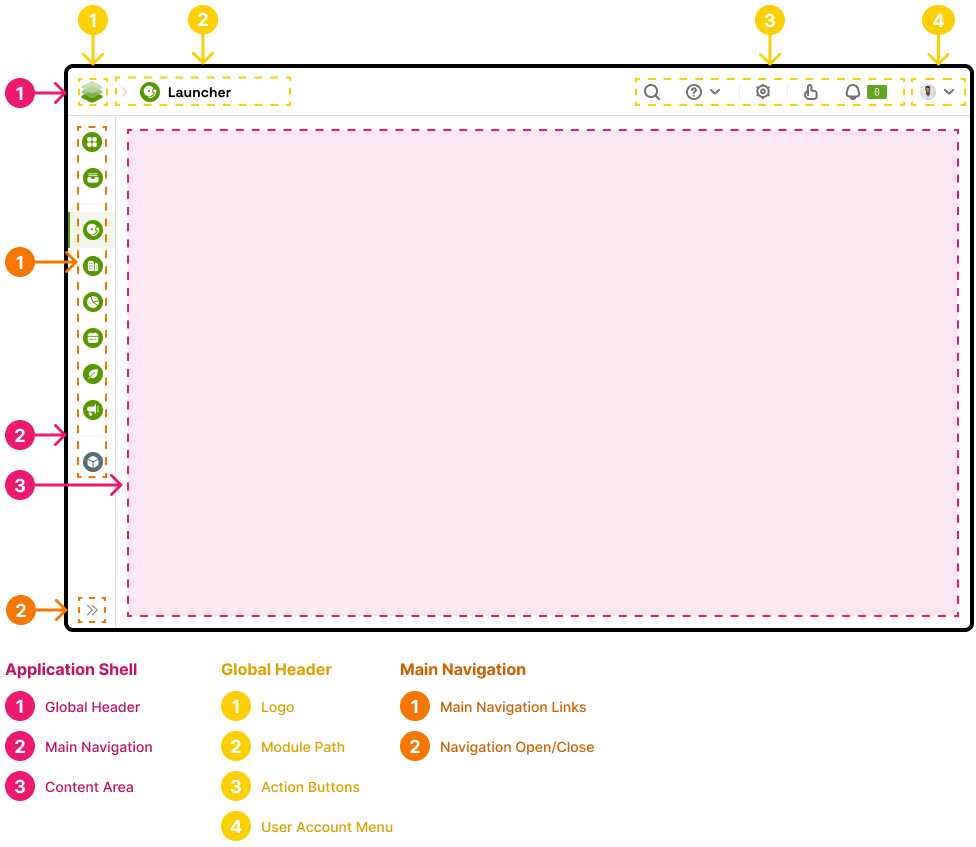
The console consists of three basic elements:
#### Application Shell
The shell contains the global application header and main navigation. These elements are always visible. The primary view content is displayed in the content area.
#### Global Header
As the name implies, the header is a static UI element available at all times. The header contains the ***Green Stack logo***, the current **module path**, **action buttons** for searching, commanding, and getting help, and the **user account menu**.
## Keyboard Shortcuts
{% tabs %}
{% tab title="Global Shortcuts" %}
Combination
Description
F1, Ctrl + ?
Open Help Panel
Ctrl + /
Open Command Prompt
F1, Ctrl + ?
Switch User
Ctrl + ,
System Preferences
{% endtab %}
{% tab title="Engineering" %}
Combination
Description
Ctrl + E
Edit Current Record
Ctrl + S
Save Current Record
Ctrl + D
Duplicate Current Record
Esc
Cancel Current Editing Session
{% endtab %}
{% endtabs %}
# Building Engineering
# Site & Equipment Setup
## Mechanical Equipment
### Add a new mechanical equipment node
To add a new mechanical equipment node:
1. **Login** to the **Green Stack Console** and navigate to **Building Engineering**
2. Expand the desired **Site** in the system tree and select **Mechanical Equipment**
3. Click **New Equipment**
4. Provide a **Name** and **Designation Tag** (AHU-1, BLR-3, etc)
5. Select the **Equipment Type**
6. **Configure** additional **parameters** for the selected equipment type
7. Click **Save** to add the equipment node
{% hint style="warning" %}
**Note:** Once a node is saved, only the name, tag, and description properties can be changed
{% endhint %}
#### Configurable Equipment Parameters
{% tabs %}
{% tab title="Air Handler" %}
{% endtab %}
{% tab title="Chilled Water Plant" %}
{% endtab %}
{% tab title="Hot Water Plant" %}
{% endtab %}
{% tab title="Steam Plant" %}
{% endtab %}
{% tab title="Chiller" %}
{% endtab %}
{% tab title="Cooling Tower" %}
{% endtab %}
{% tab title="Boiler" %}
{% endtab %}
{% tab title="Fan" %}
{% endtab %}
{% tab title="Pump" %}
{% endtab %}
{% tab title="VAV" %}
{% endtab %}
{% tab title="Fan Coil Unit (FCU)" %}
{% endtab %}
{% tab title="Heat Pump (HP)" %}
{% endtab %}
{% tab title="Unit Vent (UV)" %}
{% endtab %}
{% endtabs %}
# Connectivity
# Building Automation
## Configuring BACnet
{% hint style="warning" %}
Before you begin, you must have an active edge device with a BACnet connector configured. See the [Planning for BACnet](#planning-for-bacnet) section.
{% endhint %}
To configure BACnet:
1. **Login** to the **Green Stack Console** and navigate to **Building Engineering**
### Adding BACnet Devices
To add BACnet devices:
1. Select a **Site** from the system profile tree
2. Expand **Connectivity** and select the **Building Automation** folder
{% tabs %}
{% tab title="BACnet Discovery" %}
To add devices via BACnet discovery:
1. Click **Add Devices**
2. **Select** the discovered **devices** you'd like to add
3. Click **Import Devices** to save the devices
{% endtab %}
{% tab title="Manually" %}
To add a BACnet device manually:
1. Select **Manual Entry** from the **Add Devices menu**
2. Provide a **Device Name**, **Device Instance**, and brief **description**
3. Provide additional optional fields as desired
4. Click **Save Device** to save the device
{% endtab %}
{% endtabs %}
### Adding BACnet Points
To add BACnet points in a managed BACnet device:
1. Select a **BACnet device** from the system profile tree
2. Select the **Points** tab
{% tabs %}
{% tab title="BACnet Discovery" %}
To add points via BACnet discovery:
1. Click **Add Points**
2. **Select** the discovered **points** you'd like to add
3. Click **Import Points** to save the points
{% endtab %}
{% tab title="Manually" %}
To add a BACnet point manually:
1. Select **Manual Entry** from the **Add Points menu**
2. Select a **Point Type** from the dropdown
3. Provide a **Point Name**, **Object Instance**, and brief **description**
4. Provide additional optional fields as desired
5. Click **Save Point** to save the device
{% endtab %}
{% endtabs %}
## BACnet Alarming
Managed BACnet point alarms are automatically annunciated to the Green Stack console by default. The behavior of the alarm and its priority are determined by the configuration of the BACnet point and its associated notification class.
#### Alarm Priority
When a new alarm is received, it is prioritized by the assigned notification class priority.
NC Priority
Alarm Priority
Alarm Level
0-63
PRI1
CRITICAL
64-127
PRI2
WARN
128-191
PRI3
CAUTION
192-255
PRI4
NOTICE
# Trend Collectors
Trend Collectors allow you to store historic telemetry readings for equipment, sensors, and devices in your building. You can use trend data in equipment plots, reports, and charts to evaluate equipment performance and troubleshoot sequence and operation issues. You can also query trend data using the Green Stack REST API and export historic data for use in other platforms.
## Trend Collector Types
Trend Collectors can be configured as one of two types: **Edge Polling** or **Manual Upload**
### Edge Polling
Edge Polling type collectors are synchronized with an edge device that queries the target point at the desired sample interval and uploads readings to the cloud in real time. To use Edge Polling, the target point must be connected via an active Green Stack edge device with BACnet configured.
Edge Polling collectors store the following data properties with each sample:
* Present Value (raw integer)
* Feedback Value (raw integer, if present)
* Status Flags
* Event State
* Priority Array
* State Text
### Manual Upload
Manual Upload type collectors are simple data buckets that accept user-uploaded CSV sample data. These collectors are useful if you are exporting trend data directly from a building automation system and they allow you to add historic reporting when you don't have an active edge device.
## Trend Collector Quality
Trend Collector data quality is an indicator of collector and system health. The data quality of a trend collector is determined by calculating the number of data samples that are missing for a given time period and is expressed as a percentage. The higher the percentage, the healthier the collector.
For example, in a two-hour period, a trend collector with a five-minute sample interval should receive 24 data samples. If only 18 samples have been collected, the data quality will be 75% and the collector will be considered unhealthy.
### Automatic Quality Monitoring
Green Stack Cloud constantly evaluates the sample quality of polled trend collectors over a rolling two-hour period. When more than 15% of samples are missing over the last two hours, the collector will be marked as UNHEALTHY. When the missing sample rate drops below 15%, the collector will be marked as HEALTHY again.
You can review collector health change events in the System Activity Log.
{% hint style="info" %}
Note, data quality monitoring is only available for Edge Polling-type collectors
{% endhint %}
## Manage Trend Collectors
Trend Collectors are managed in Building Engineering on a site-by-site basis. To view and manage Trend Collectors in the Green Stack Console:
1. **Log in** to the **Green Stack Console** and navigate to **Building Engineering**
2. **Select** a **site** from the system tree
3. Select **Trend Collectors**
### Add a New Trend Collector
To add a new Trend Collector:
1. Click **New Collector**
2. Select the desired **Target Point**
3. Select the desired **Collection Strategy** (see above)
4. Select the desired **Sample Cadence** (interval)
5. Click **Add Collector** to save the collector
{% hint style="info" %}
Note, once a trend collector is created, the target point and the sample cadence cannot be changed
{% endhint %}
### Manage Existing Trend Collectors
To manage existing Trend Collectors, select its name from the list.
#### Viewing Sample Data
You can view the collected sample data for a collector on the **Samples** tab. Use the **Duration** dropdown to shift the sample window as desired.
#### Toggle Data Collection
To disable/enable data collection:
1. Click **Configure Collector**
2. Toggle **Data Collection** as desired
{% hint style="info" %}
Data collection can only be disabled for Edge Polling-type collectors
{% endhint %}
### Manual Sample Upload
You can manually upload trend sample data using a prepared CSV with the following columns:
* `timestamp`
* `value`
* `feedback_value`
{% hint style="warning" %}
Note, Status Flags, Event State, and Priority Array are not available for manual upload-type collectors
{% endhint %}
To manually upload trend collector sample data:
1. Select a **Manual Upload trend collector** from the list
2. Click the **Samples** tab
3. Click **Upload Samples** to open the Sample Upload Wizard
4. **Select** the target **CSV** data file
5. Adjust the **UTC Offset** as needed
6. Click **Upload & Review** to pre-process the sample data
7. **Review** the sample data and click **Commit Samples**
8. Click **Close** to finish the wizard
#### Duplicate Sample Behavior
When performing a manual data upload, the system discards sample data that already exists. This behavior prevents data from accidentally being overwritten when it has already been uploaded.
### Delete a Trend Collector
To delete an existing trend collector:
1. **Select** the **checkbox** next to one or more Trend Collectors in the list
2. **Click** the **Trash Can** icon
3. **Confirm** the delete
{% hint style="danger" %}
Trend Collector deletions are irreversible, and all collector samples will be lost forever!
{% endhint %}
## Troubleshooting Trend Collectors
Healthy, well-maintained trend collectors are a crucial component of a holistic building engineering strategy. Ensuring your trend collectors remain healthy is vital for the ongoing health of your building.
When troubleshooting collector quality, ensure:
* The target edge device is online
* The target BMS device is online
* The target BMS point exists in the device database
Edge devices log collector issues as they arise. When troubleshooting collectors, you can check edge device logs to narrow down a polling or device issue on-site.
Transient data quality issues may arise when an edge device loses connection to the internet. In these situations, the edge device continues to poll as normal and accumulated samples are pushed to the cloud when the device is reconnected to the internet.
# Utilities
# Energy Management
# Reporting & Trending
# Build & Run Reports
# Report Groups
## Create a new report group
Follow these steps to create a new report group:
1. In the Green Stack Console...
# Scheduled Reports
# Schedules & Calendars
# System Activity Log
# System Preferences
# Global Settings
The Global Settings section allows you to configure platform settings that apply to your entire tenant account and affect all platform users. Here you can change your account name, configure data retention policies, and set global BACnet configuration options.
To manage global platform settings:
1. **Login** to the [**Green Stack Console**](https://go.counterbalance.io/gs-console--sysconf) and navigate to **System Configuration**
2. Select **Global Settings** from the sidebar
## Account Name
You can change the name of your organization or company and how it appears to your users.
1. Select **Change Name** from the *Account Name* section
2. Provide the desired **Account Name**
3. Click **Save Changes** to save your settings
#### See Also
* Change Billing Address
## Data Retention Policies
You can adjust how long Green Stack retains platform event and log data. The retention policies available in your account will depend on which data retention packages you have purchased.
### Policy Options
Policy
Description
Default
System Event Logs
User activity events such as point commands, alarm acknowledgements, and other system-generated log events
30 days
Alarm Event History
Historic alarm event data for events that have been cleared and acknowledged
Active and unresolved events are not affected by this policy
7 days
Collector Samples
Historic trend collector samples for active trend collectors
90 days
### Configure Retention Policies
To change the retention policies for your company or organization:
1. Click **Adjust Policies** in the *Data Retention Policies* section
2. Select the **desired retention duration** for each policy
3. Click **Save Changes** to save your settings
{% hint style="info" %}
Note, it may take eight to twelve hours for policy changes to take effect
{% endhint %}
## BACnet Settings
You can configure global BACnet settings including the BACnet priority array and BACnet alarm priority sorting.
To manage global BACnet settings:
1. Click **Change BACnet Settings** in the *BACnet Settings* section
### Priority Array Settings
You can configure which BACnet command priorities are available to your users and customize the labels that appear for each level. The priorities you disable here will be unavailable to your users in the commander.
To enable/disable priorities:
1. Open the **Priority Enable/Disable** panel
2. **Toggle** priorities on or off as desired
To adjust priority labels:
1. Open the **Priority Labels** panel
2. **Modify priority labels** as desired
3. Click **Save Changes** to save your settings
# Edge Devices
A **Green Stack Edge Device** is a powerful, on-premise compute engine that securely connects your building systems to the Green Stack Cloud and performs several key platform operations.
An Edge Device is responsible for:
* Communicating with BACnet BMS devices
* Monitoring managed BMS device and point health
* Annunciating and managing BMS alarms and faults
* Performing edge polling collector sampling
*
## Ordering an Edge Device
Green Stack is currently in an invite-only pilot phase. If you are interested in becoming a pilot site, please complete this form to contact us. A member of the Green Stack support team will contact you to discuss your needs.
## Edge Device Connectivity Options
An edge device
# Device Setup
Completing the setup of a new edge device involves choosing an installation location, connecting it to the building network, and establishing an internet connection.
### Choosing an Installation Location
When choosing an installation location for a new edge device, it's important to consider the following:
* A 120VAC outlet is required for powering the device
* An Ethernet or WiFi connection is required for connecting to building networks and the internet
* The device's ambient temperature cannot exceed 80°F
* The device is not suitable for outdoor installation and must be kept dry and dust-free
### Configuring Network Connections
The new edge device will be pre-programmed with the IP address settings you requested during the procurement process. Connect the device as instructed by your Counterbalance project engineer. If you need to modify device settings or adjust the installation plan, please contact support.
### Device Pairing & Activation
Once a device is set up and connected to the Internet, you can pair it with your Green Stack account using the Green Stack Console.
To pair a new device:
1. **Log in** to the [**Green Stack Console**](https://console.greenstack.cloud/launcher) and navigate to **System Configuration**
2. Select **Edge Devices** from the sidebar
3. Click **Activate Device**
4. Provide the **twelve-digit serial number** printed on the device
5. Provide an optional I**nstalled Location** and **Description**
6. Click **Activate Device** to complete the pairing process
# Troubleshooting
# Adapters
To view and manage adapters in the Green Stack Console:
1. **Log in** to the **Green Stack Console** and navigate to **System Configuration**
2. Select **Adapters** from the sidebar
## Add a new adapter
To add a new adapter to your Green Stack account:
1. Click **New Adapter**
2. Select an **Adapter Option**
3. Provide the required fields (see below)
4. Click **Add Adapter** to save the adapter
{% tabs %}
{% tab title="Green Stack" %}
To add a Green Stack Edge adapter:
1. **Activate** an **Edge Device**
2. **Configure** the **BACnet service** on the device
3. **Select** the desired device from the **Edge Device** dropdown
{% hint style="warning" %}
A Green Stack adapter requires an active edge device with the BACnet service configured
{% endhint %}
{% endtab %}
{% tab title="Normal Framework" %}
To add a Normal Framework adapter:
1. **Generate** a **new application** on your Normal instance
2. Provide the **Instance URL** from your Normal dashboard in the **Host** field
3. Complete the **OAuth Client ID** and **OAuth Client** Secret from the instance application you created
4. The **Authentication Endpoint** is your instance URL appended with **`/api/v1/auth/token`**
{% endtab %}
{% endtabs %}
## Manage Existing Adapters
To update an existing adapter's properties:
1. **Select** an adapter from the list
2. **Click** the **pencil** icon to update the desired fields
To delete an existing adapter:
1. **Select** an adapter from the list
2. **Click** the **trash can** icon in the panel header
3. **Confirm** the delete
{% hint style="warning" %}
An adapter cannot be deleted if there are BMS devices connected to it
{% endhint %}
# Users & Access Control
You can view and manage the users who have access to your Green Stack tenant account using the **User Accounts** section of [Platform Configuration](broken://pages/7loUgEx14mGDzru34p8j).
## User Accounts
To view and manage user accounts:
1. **Login** to the **Green Stack Console** and navigate to **Platform Administration**
2. Select **Users & Roles** from the sidebar
### Invite a new user
To add a new user to your Green Stack account:
1. Click **New User**
2. Provide the user's **First Name**, **Last Name**, and **Email Address**
3. Optionally, you may also provide the user's **Job Title** and **Employee ID**
4. Select an **Assigned Site** for the new user from the dropdown
5. Click **Save User** to send the invitation
### Responding to an Invitation
To activate your account when you receive an invitation:
1. Click **Activate My Account** in the email you received
2. When prompted in your browser, create a **new Counterbalance ID** account by providing your **email address** and a **secure password**
3. Your account will be activated
{% hint style="success" %} **Password Requirements**
New Counterbalance ID accounts must meet these criteria:
* At least eight characters
* At least three of the following:
* Lowercase letters (a-z)
* Uppercase letters (A-Z)
* Numbers (0-9)
* Special characters (e.g. !@#$%^&\*)
* No more than two identical characters in a row
{% endhint %}
### Updating a User Account
To update an existing user account:
1. Navigate to **Users & Roles**
2. Select the **User** from the user listing
3. Click the **pencil icon** to open the editor
4. **Update** any fields as desired
5. Click **Save** to save the changes
# QR Tags
{% columns %}
{% column width="75%" %}
QR Tags are small stickers that can be linked to mechanical equipment or devices and scanned with a smartphone for easy field management. When scanned, the tag redirects you to the managed equipment or device in the Green Stack mobile app.
To view and manage QR tags:
1. Select **QR Tags** from the sidebar
2. **Login** to the [**Green Stack Console**](https://go.counterbalance.io/gs-console--sysconf) and navigate to **System Configuration**
{% endcolumn %}
{% column %}
{% endcolumn %}
{% endcolumns %}
## Add a New QR Tag
To link a new QR tag:
1. Click **New Tag**
2. Provide the eight-digit **Tag ID** and an optional **Description**
3. Select the resource **Target Type** and the desired **Resource**
4. Click **Add Tag** to save the tag link
{% hint style="warning" %} **Note**
Once a tag has been added, you cannot modify it
{% endhint %}
## Delete QR Tags
To delete one or more QR tags:
1. **Select** the tags using the **checkbox** in the tag listing table
2. Click the red **Trash Can** icon
3. **Confirm** the delete operation
# Subscriptions & Billing
## Activation
You must activate your billing account before you can add new subscriptions and purchase add-on features.
To activate a new billing account:
1. **Login** to the **Green Stack Console** and navigate to **Settings**
2. Select **Subscriptions & Billing** from the sidebar
3.
## Payment Methods
You must add a payment method to your account when you activate billing. You cannot create new subscriptions until at least one payment method has been added to your account.
To access payment methods in Green Stack:
1. **Login** to the **Green Stack Console** and navigate to **Settings**
2. Select **Subscriptions & Billing** from the sidebar
3. Select the **Payment Methods** tab
### Add a new payment method
The following payment options are supported:
* Credit Card (Visa, MasterCard, American Express)
* Bank Account (EFT)
{% tabs %}
{% tab title="Credit Card" %}
To add a new credit card to your account:
1. Select **New Payment Method** and select **Credit Card** from the dropdown menu
2. Provide the **cardholder name**, **card number**, **expiration date**, and **CVV**
3. Provide a **Nickname** for the card that helps identify it
*(i.e. corporate debit card, Amex Platinum card)*
4. Select **Save Credit Card** to complete the card setup
{% endtab %}
{% tab title="Bank Account" %}
To add a new bank account to your account:
1. Select **New Payment Method** and select **Bank Account** from the dropdown menu
2. Provide the **account type**, **account number**, and **routing number**
3. Provide a **Nickname** for the account that helps identify it
*(i.e. corporate checking account, capital account)*
4. Select **Save Bank Account** to complete the account setup
{% endtab %}
{% endtabs %}
### Configure the default payment method
Your default payment method is used for new subscriptions and one-off charges your account may incur.
To configure a payment method as the default payment method:
1. **Select** the **preferred default** payment method from the table
2. Toggle **Set as Default Payment Method** switch
3. Confirm the change by selecting **Confirm** in the modal popup
## Subscriptions
## Invoices & Receipts
# Web Hooks
## What are hooks?
Hooks are inbound and outbound HTTP requests that allow you to integrate Green Stack with other systems.
### Outbound Hooks
An **Outbound Hook** is an HTTP request initiated from Green Stack to remote system. Outbound hooks can be configured as a `GET`, `PUT`, or `POST` method. For `PUT` and `POST` methods, you may also configure a static or dynamic request body that can be included with the request.
### Inbound Hooks
An **Inbound Hook** is an HTTP request sent to Green Stack from a remote system. An inbound hook can be configured as a trigger for an [Algorithm ](broken://pages/ywq2iWQMyxGvpIup6863)and can be used to posture equipment in response to an external event, such as demand response, alarms, etc.
# REST API
The **Green Stack REST API** allows you to extend your Green Stack account and integrate custom solutions.
The API is crafted around [REST](https://wikipedia.org/wiki/REST) and the REST architectural style to provide developers with a stateless and language-agnostic interface. The API leverages common HTTP verbs and response codes, OAuth2 authentication, and resource oriented URLs.
## Accessing the API
The root API host is `https://api.greenstack.cloud/`
You must have an active subscription for the Green Stack REST API to add new API keys and make API calls.
### Creating a new API key
To create a new API key:
1. **Login** to the **Green Stack Console** and navigate to **Settings**
2. Select **API Keys** from the sidebar
3. Select **New Key** to create a new API key
4. Provide a **Name** for the new key and **select** the desired **permissions**
5. Select **Save** to generate the key
Once you create a key, you must pass it with the `X-Green-Stack-Key` header to authenticate every request.
```
X-Green-Stack-Key: dgf...euhsdf
```
### API endpoint documentation
The API endpoints available are documented in an [Open API](https://spec.openapis.org/oas/latest.html) spec at [https://api.greensack.dev/v1](https://go.counterbalance.io/gs-api-ref)
## HATEOS
**HATEOAS (Hypermedia as the Engine of Application State)** is a constraint of the REST application architecture that lets us use hypermedia links in the API responses that allow the client to dynamically navigate resources without prior knowledge of the API.
Green Stack REST API returns HATEOS links in resource responses by default. These links outline relative access to related resources, collections, and references.
### Toggling HATEOS links in API responses
Links may not be necessary or appropriate for every request. Links can be removed from the response by passing the `X-Green-Stack-Suppress-Links` header and setting it to `true`
```
X-Green-Stack-Suppress-Links: true
```
# Making Requests
When you make a request to the API, you will specify an HTTP method and a path. Additionally, you might also specify request headers and path, query, or body parameters. The API will return the response status code, response headers, and potentially a response body.
The API reference documentation describes the HTTP method, path, and parameters for every operation. It also displays example requests and responses for each operation.
## Supported HTTP Operations
The API supports standard `GET`,`POST`,`PUT`,`PATCH`,`DELETE`, & `OPTIONS` verbs. General usage of these verbs is outlined in the following table.
Verb
Description
GET
Retrieves existing resources
POST
Creates a new resource and returns it
PUT
Creates a new resource within or attached to an existing resource and returns the new resource
PATCH
Updates an existing resource and returns the updated resource
DELETE
Removes an existing resource and returns nothing
OPTIONS
List available verbs against a resource
## Forming a Request
The REST API is access via HTTP/S at the root URL below. Refer to [Versioning](/integration/rest-api/versioning) to learn more about how the API version is specified in the URL.
{% code title="REST API Root" %}
```
https://api.greenstack.cloud/v1
```
{% endcode %}
To make a request, first find the HTTP method and the path for the operation that you want to use. The [reference documentation](https://go.counterbalance.io/greenstack-api-ref) will specify which headers, parameters, and request data will be required for each request. You will use this information to build a request to the API.
## Modifying the Response
The API supports a flexible range of query parameters that allow API responses to be modified, sorted, and filtered as needed.
### Sorting Resources
You may specify the sort field and direction used when returning a list of resources. To sort resources, use the following query parameters:
* **`sort.field`** - specify the property field used for sorting. Each endpoint will specify which properties support sorting.
* **`sort.direction`** - specify the direction the resources should be sorted. To sort resources in ascending order, set this parameter to `asc`. To sort resources in descending order, set this parameter to `desc`.
### Returning a Subset of Resources
You may return a subset of resources to be returned by specifying a comma-separated list of resource IDs:
```
https://api.greenstack.cloud/v1/site?id=abcd...,efgh...,ijkl...
```
### Searching for Resources
Resource lists may be filtered using a series of property search parameters that return resources based on a set of matching values. You can use a `*` character to perform wildcard searches.
For example, to return all the sites that contain the word "office" in the name:
```
https://api.greenstack.cloud/v1/site?properties.name=*office*
```
To return all the sites with a code that starts with SEA:
```
https://api.greenstack.cloud/v1/site?properties.code=SEA*
```
Without a wildcard, an exact match is required. For example, to return all BACnet BMS devices:
```
https://api.greenstack.cloud/v1/bms/device?properties.type=bacnet
```
The property search fields available will vary by endpoint and each endpoint will define which fields support searches.
### Using References
References allow you to leverage the relationships amongst resources to return related resources using a standard reference syntax. The references available will vary depending on the resource.
{% hint style="info" %}
Refer to [Data Model & Schema](broken://pages/-MAXsQMZM1CnCUxYFnIk) documentation to learn more about references and resource relationships.
{% endhint %}
For example, to return all the BMS devices associated with a specific site:
```
https://api.greenstack.cloud/v1/bms/device?@ref.site:node=abcd...
```
## Bulk and Batch Operations
Some API endpoints support the bulk creation, update, and deletion of resources.
### Bulk Resource Creation
To create resources in bulk, submit the request as an array of objects. Each resource will be evaluated individually, and no resources will be created if an error is generated.
```
[
{
"..."
},
{
"..."
}
]
```
### Bulk Resource Updates
To apply updated properties in bulk, specify a comma-separated list of resource IDs with the update request.
# Responses and Errors
## Status Codes
Every request will return an HTTP status code that indicates the success or failure of the operation. For more information about response codes, see [the MDN HTTP response status code documentation](https://developer.mozilla.org/en-US/docs/Web/HTTP/Status).
### Success Codes
In general: Codes in the 2xx range indicate success.
Code
Response
Description
200
Ok
The request was completed successfully. Response body will vary.
201
Created
In response to a PUT or POST request, the resource was created successfully. The new resource's ID will be returned in the response body.
204
No Content
The request was completed successfully and there is no response body to return. Such as when an object has been deleted. The response body will be null.
### Error Response Codes
Codes in the 4xx range indicate an error that failed given the information provided (e.g., a required parameter was omitted, a resource could not be found, etc.). Codes in the 5xx range indicate an error with the Green Stack backend (these are rare).
Code
Response
Description
400
Bad Request
The request was malformed, provided incorrect/incomplete/conflicting parameters, or the requested endpoint does not exist. The response body will contain additional information about why the error has occurred. Do not repeat the request without modifying it first.
401
Unauthorized
The request requires an Authorization header and a valid token but either neither was provided or the provided token has expired. Refer to the error message provided to determine the proper course of action.
403
Forbidden
The API authentication was successful but the user does not have adequate permissions to satisfy the request or the tenant account is locked.
404
Not Found
The resource requested does not exist or was not found.
409
Conflict
The provided combination of parameters results in a conflict and the resource cannot be updated. The error message output will provide additional information as to why the call cannot be completed.
5XX
varies
The API encountered an internal error when processing the request. The error message provided may provide additional information. Retrying the request after a few minutes may be successful.
#### Timeouts
If Green Stack takes more than 10 seconds to process an API request, Green Stack will terminate the request and you will receive an error. Counterbalance reserves the right to change the timeout window to protect the speed and reliability of the API.
## Response Headers
Every response will include headers that give more details about the response and status. Headers that start with `X-` or `x-` are custom to Green Stack.
### Standard HTTP Headers
These headers are standard HTTP headers that the client can use to evaluate the response.
### Green Stack Headers
These headers are included in all responses.
| Header Name | Description |
| -------------------------------- | ----------------------------------------------------- |
| **`X-Green-Stack-Compute-Node`** | The service node that generated the response |
| **`X-Green-Stack-Gateway-Node`** | The application gateway node that served the response |
| **`X-Green-Stack-Realm`** | For internal troubleshooting and debugging |
| **`X-Green-Stack-Request-ID`** | The application gateway request ID |
#### Green Stack Edge Headers
These headers are returned when the API operation involves a request to an edge device.
| Header Name | Description |
| -------------------------------------- | ------------------------------------------------------------------------------------- |
| **`X-Green-Stack-Edge-Cache`** | Indicates if the response was served from the edge device cache |
| **`X-Green-Stack-Edge-Cache-Age`** | The age of the cached response |
| **`X-Green-Stack-Edge-Cache-Control`** | The `Cache-Control` header returned by the edge device |
| **`X-Green-Stack-Edge-Error`** | The error message returned by the edge device. Only present if an error has occurred. |
| **`X-Green-Stack-Edge-Response`** | The HTTP status code returned by the edge device |
| **`X-Green-Stack-Edge-RTT`** | The total round-trip-time for the upstream edge request |
| **`X-Green-Stack-Edge-Trace`** | For internal troubleshooting and debugging |
#### Green Stack Error Headers
These headers are included in when an error is returned.
| Header Name | Description |
| ------------------------------- | -------------------------------------------------------------------------------------------------------------------------------- |
| **`X-Green-Stack-Error-Trace`** | The error tracing hash for internal debugging. Counterbalance Support may request this value during a technical support request. |
## Response Body
Many operations will return a response body. Unless otherwise specified, the response body is in JSON format. Responses will include a `Content-Type` header that indicates the type of data returned in the response.
### Summary Representation
When you fetch a list of resources, the response includes a *subset* of the attributes for that resource. This is the "summary" representation of the resource. Some attributes are computationally expensive for the API to provide. For performance reasons, the summary representation excludes those attributes. To obtain those attributes, fetch the "detailed" representation.
### Detailed representations
When you fetch an individual resource, the response typically includes *all* attributes for that resource. This is the "detailed" representation of the resource. Note that authorization sometimes influences the amount of detail included in the representation.
## Errors
Error responses will vary depending on the situation. In general, a brief description of the error will be provided with suggested next steps.
```json
{
"error": {
...
},
"trace": "034dd6ad00770337bb07e906d919ed50f8884e86"
}
```
### Error Tracing
Most errors are automatically logged and reported. These errors will return a `trace` ID in the error response body. Counterbalance Support may request this trace ID value to assist with troubleshooting or debugging the API.
This trace ID is also added as a header in the response.
```
X-Green-Stack-Error-Trace: 034dd6ad00770337bb07e906d919ed50f8884e86
```
# Versioning
The REST API is versioned and the API version used is specified in the request URL. Presently, Version 1 is the only version available.
## Version Criteria
Any breaking changes will be released in a new API version. Breaking changes are changes that can potentially break an integration. Breaking changes include:
* removing an entire operation
* removing or renaming a parameter
* removing or renaming a response field
* adding a new required parameter
* making a previously optional parameter required
* changing the type of a parameter or response field
* removing enum values
* adding a new validation rule to an existing parameter
* changing authentication or authorization requirements
Any additive (non-breaking) changes will be available in all supported API versions. Additive changes are changes that should not break an integration. Additive changes include:
* adding an operation
* adding an optional parameter
* adding an optional request header
* adding a response field
* adding a response header
* adding enum values
When a new REST API version is released, the previous API version will be supported for at least 12 more months following the release of the new API version.
## Upgrading
Before upgrading to a new REST API version, you should read the changelog of breaking changes for the new API version to understand what breaking changes are included and to learn more about how to upgrade to that specific API version.
When you update your integration to specify the new API version in the request URL, you'll also need to make any changes required for your integration to work with the new API version.
Once your integration is updated, test your integration to verify that it works with the new API version.
# Appendices
# Building Type Codes
### 0 - Banking/Financial Services
| Types | Subtypes |
| -------------------- | -------- |
| 0 - Bank Branch | None |
| 1 - Financial Office | None |
### 1 - Education
| Types | Subtypes |
| ---------------------- | --------------------------------------------------------- |
| 0 - Adult Education | None |
| 1 - College/University | None |
| 2 - K-12 School |
# Point Unit Codes
| | | |
| - | - | - |
| | | |
| | | |
| | | |
# Requesting Support
Several Green Stack support options allow you to get the support you need in any way that suits you.
## Requesting Support
You can request support in multiple ways:
* In the console
* Email
* Phone
### Create a new support case
{% tabs %}
{% tab title="In-Console" %}
To create a support request in the console:
1. **Login** to the **Green Stack Console**
2. Select **My Support Requests** from the **User Menu**
3. Select **New Support Case**
4. Select the issue **Type** and **Description**
5. Provide a **detailed description** of your request
6. Select **Submit Request**
{% endtab %}
{% tab title="Email & Phone" %}
#### Via Email
To request support via email:
1. **Compose** a new email to ****
2. Provide a **Subject** that summarizes your request
3. Provide a **detailed description** of the request in the body
4. **Attach** any supporting documents, screenshots, or logs as needed
5. **Send** the email to submit the request
You will receive a confirmation email with your case ID
#### Via Phone
To request support via phone:
1. **Call** our office at **+1 (833) 659-5700**
{% endtab %}
{% endtabs %}
## Manage Cases
You can view and manage your support cases in the Green Stack Console.
### View your support cases
To access and view your support cases:
1. **Login** to the **Green Stack Console**
2. Select **My Support Requests** from the **User Menu**
You can view your active cases, add new comments or attachments, and complete post-service satisfaction surveys.
# Open Source Credits
Counterbalance Green Stack would not be possible without these badass Open Source projects
* [Angular](https://angular.io/)
* [Apache](https://httpd.apache.org/)
* [Docker](https://www.docker.com/)
* [Doorman](https://github.com/silverstripe/doorman)
* [Kubernetes](https://kubernetes.io/)
* [Linux](https://www.linux.org/)
* [MySQL](https://www.mysql.com/)
* [NGINX](https://nginx.org/en/)
* [PHP](https://www.php.net/)
# Glossary
## T as in Tacoma
### Tenant
A **Tenant** object is a self-contained root object that creates a *Root Scope* for all additional platform objects. This reference to the root scope is called *Tenancy.* Objects can only belong to one tenant and it is not possible to change the tenancy of an object.
## B as in Bravo
# Legal
## Terms of Use
By creating an account and using the Counterbalance API, you agree to be bound by the following Terms and Conditions
* [Counterbalance Self-Serve Subscription Terms](https://www.counterbalance.io/legal/subscription-terms)
* [Counterbalance Privacy Policy](https://www.counterbalance.io/privacy)
* [Counterbalance Acceptable Use Policy](https://www.counterbalance.io/legal/acceptable-use-policy)
## Data Security & Privacy
See [Counterbalance Privacy Policy](https://www.counterbalance.io/privacy)
## API License
See [Counterbalance API License](https://www.counterbalance.io/legal/api-license)